

Intro
Bigbot Smash is an action-packed game where you control a massive robot to smash up human cities in a 3D world. The game is available for iPhone, iPod Touch, and iPad.
Some features:
- Smash/blast/stomp buildings to make them explode, crumble, and collapse
- Stomp on, incinerate, and blast puny humans who come in unending numbers
- Upgrade your bots with different weapons, armor and equipment
- Gameplay in 3 different modes: Main Campaign, Speed Demolition, and Survival Challenge
Controls
General Controls
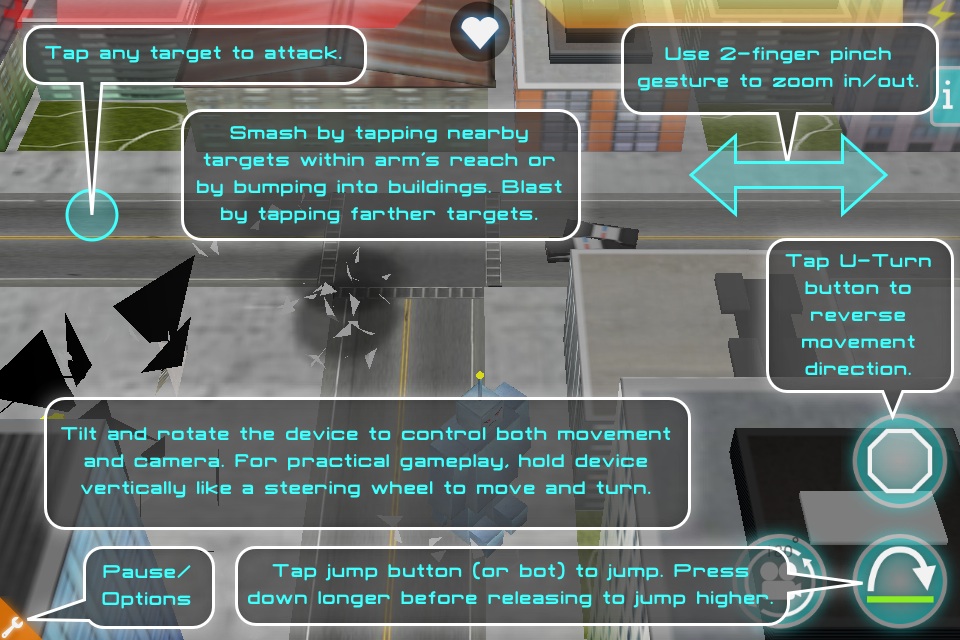
Attacking: Attack targets by tapping them or by bumping into them. If the bot is close enough, it will smash at the target. If the target is out of arms reach, the bot will only blast at them. Zoom in and tap at nearby targets within arm reach to make the bot automatically jump towards the target and smash at it, causing extra bonus damage.
Jumping: Tap either the Jump button or the bot itself to jump. Hold down either the jump button or the bot itself for longer (up to 4 seconds) before releasing to jump higher. The longer you hold it down, the higher the bot will jump. Jumping into or onto buildings will cause extra bonus damage.
Movement/Camera: Choose from 4 different movement/camera modes: Tap, Joystick, Swipe, and Tilt, described below:
Tap Control Mode
Camera: Change the camera angle by tapping the Flip Camera button. Zoom in and out by pinching the screen with two fingers.
Moving and Attacking: Tap a location/target to both move and attack it the location.
Alternate Movement: Hold down a finger and slide it around to move your bot independently from attacks. The bot will follow your finger. This is useful for continuous movement in a direction.
Stop Button: Push the stop button while the bot is moving to cancel the last movement command and make the bot stand still.
Tip: Put the device down on a table so that all of your fingers are left free to move or attack.
Joystick Control Mode
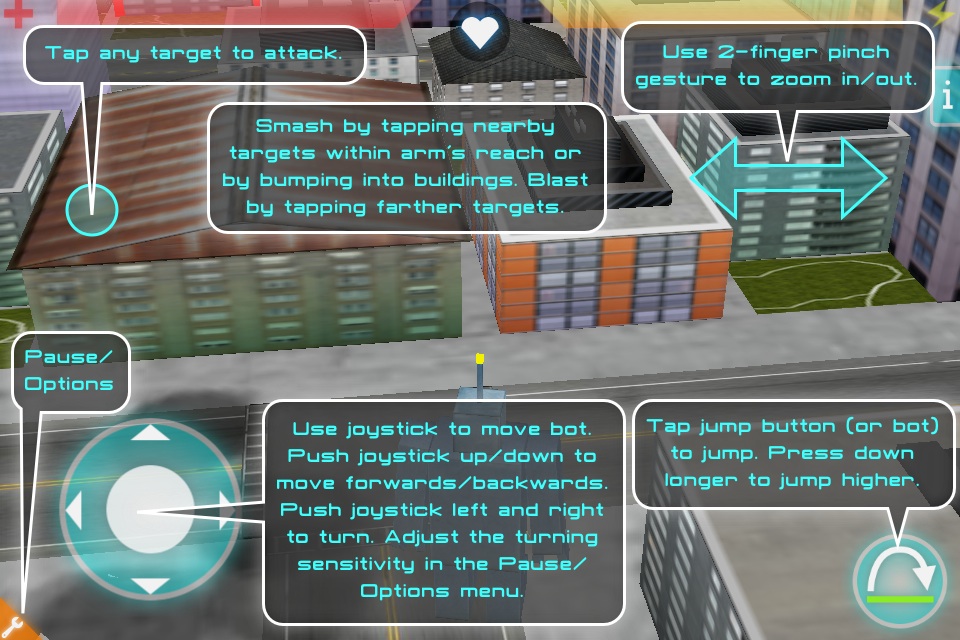
Camera: In the Joystick control mode, the camera follows behind the bot as the bot moves and turns. Pinch the screen with two fingers to zoom in and out.
Onscreen Joystick: Use the onscreen joystick to control the bot's movement. Push the joystick up to walk forward, and down to walk backwards. Push the joystick left and right to turn the bot left or right.
Turn Rate: Different bots move and turn at different rates. If the turn rate of the bot is too slow or too fast to control, then you can adjust the turn sensitivity of the joystick by tapping the Options button (orange button in lower left corner of screen) and changing the turn sensitivity in the Controls tab.
Tip: When using this control mode, put the device down on a table so that you can control the joystick with one hand, while leaving the other hand free to attack anywhere on the screen.
Swipe Control Mode
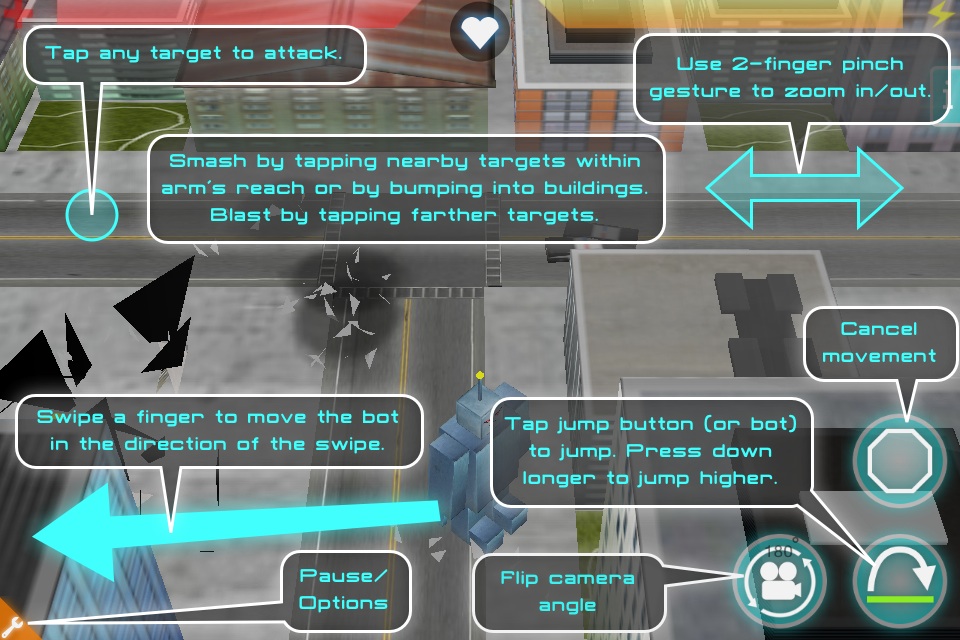
Swipe to move Quickly swipe one finger along the ground to move the bot in the direction of the swipe.
Stop Button: Push the stop button while the bot is moving to cancel the last movement command and make the bot stand still.
Tip: When using this control mode, put a finger on the bot, and swipe the finger in a direction to cause the bot to jump in that direction.
Camera: Choose from top (used in the Tap controls), chase (used in the Joystick controls), and tilt (used in the Tilt controls) camera modes. You can change the camera mode in the Options menu.
Tilt Control Mode
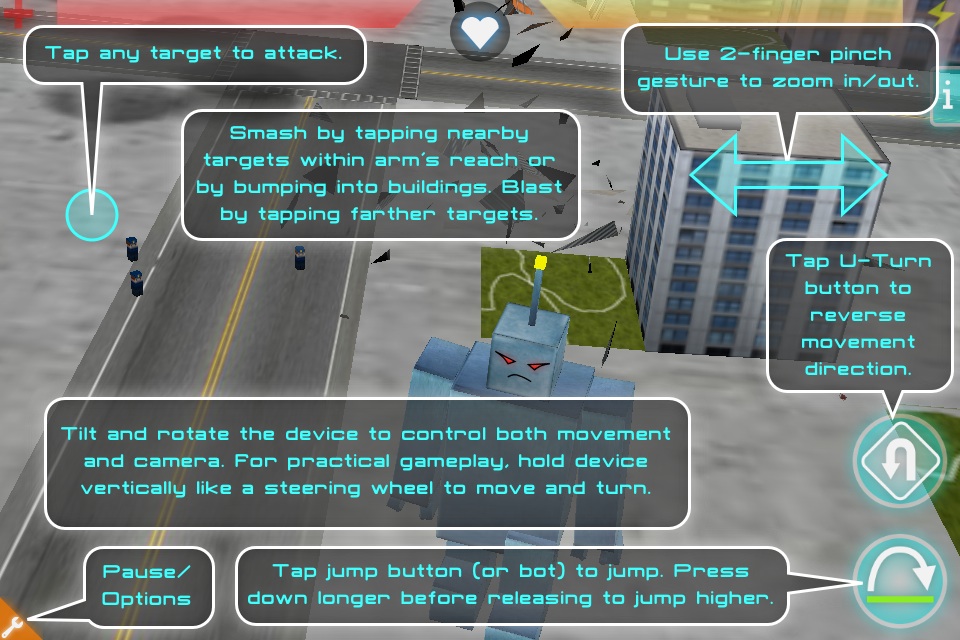
Camera and Movement: Pick up the device and hold it with two hands. Tilt and rotate it to change the camera angle and move the bot. Pinch the screen with two fingers to zoom in and out.
U-Turn: While the bot is walking, tap the U-Turn button to toggle between the bot walking uphill/downhill (or bot facing towards/away from the camera). Use the U-Turn button to avoid having to rotate the device 180 degrees to turn the bot around. This lets you keep your hands in the same position on the device at all times.
Tip #1: To see farther, hold the device upright with two hands like a steering wheel, with the screen facing you, and rotate the device.
Tip #2: For a more top-down view and to stand still, hold the device flat, with the screen facing up.
Tip #3: Depending on the bot's turn rate, it may take a second or two for the bot to entirely turn around after the U-Turn button is pressed. Pressing the U-Turn button repeatedly will get you nowhere.
BACK TO TOPGameplay
Stats
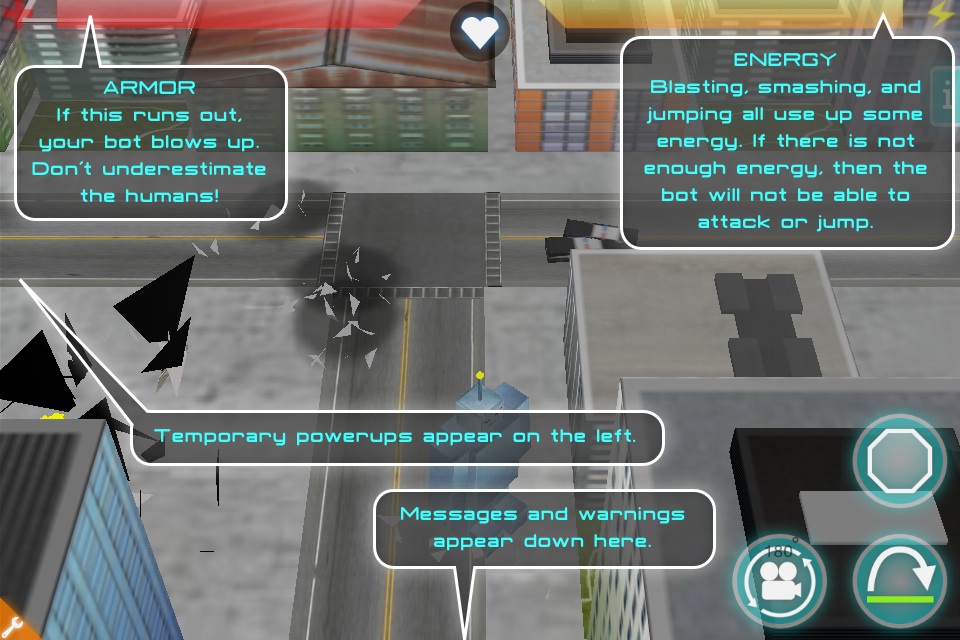
Armor: Your bot can withstand only a certain amount of damage before exploding. Some bots can repair themselves slowly or have force fields that reduce most kinds of damage.
Energy: Blasting, smashing, and jumping all use up some energy. If there is not enough energy, then the bot might not respond to commands to attack or jump, and may move slowly. Energy recharges over time, but recharges faster when the bot is standing still and not attacking. Tip: The color of the tip of the bot's head antenna also shows the amount of energy remaining. As the energy decreases, it fades from yellow to orange, red, and finally dims to black.
Gameplay Modes
There are three different gameplay modes: Main Campaign, Speed Demolition, and Survival Challenge.
Main Campaign:
Story: The humans have dismantled your sweetheart and stolen all the pieces. Find all the pieces hidden in 24 cities across the globe.
Sweetheart pieces are hidden in red-outlined buildings, which are much harder to demolish than normal buildings. The heart indicator on the top of the screen shows a gauge of sweetheart parts found/remaining in the current city.
Bot Upgrades: After each level, you will have a chance to customize and upgrade the bot in preparation for the next level. Bots are fully repaired after each level.
Game Slots: There are 3 slots available, allowing you to play the main campain with different bots or choices of bot customizations.
Speed Demolition:
Objectives: In each level, you must destroy a certain percentage of the city's buildings within the time limit, while humans try to stop you.
Indicators: A countdown timer and building quota indicator can be found on the top of the screen.
Bot Upgrades: After each level, you will have a chance to customize and upgrade the bot in preparation for the next level. Bots are fully repaired after each level.
Leaderboard: If you are signed into GameCenter, the game will automatically submit your count of buildings demolished to the Speed Demolition leaderboard when your bot is destroyed or a level is completed. If you restart the level after your bot is destroyed, then the buildings-demolished counter is reset to zero.
Survival Challenge:
Objectives: See how long you can defend against ever increasing waves of humans. Do you have the ball bearings to survive?
Indicators: On the top of the screen is a countdown timer that shows the time until the next wave of humans. Each wave will arrive whether or not the previous wave was destroyed.
Bot Upgrades: Before the survival challenge begins, you can customize and upgrade the bot. Unlike the other two gameplay modes, there is no break between levels, and there are no further opportunities to customize the bot. Build your bot to last.
Leaderboard: If you are signed into GameCenter, the game will automatically submit your total time survived to the Survival Challenge leaderboard when your bot is destroyed. If you restart a wave after your bot is destroyed, then the timer is reset to zero.
BACK TO TOPUpgrades
Upgrade Parts: Collect upgrade parts dropped by demolished buildings or earned by completing missions. After each level in the Main Campaign and Speed Demolition gameplay modes, and before the Survival Challenge gameplay mode, you will be able to build bot upgrades from these parts to customize your bot and make it more powerful.
Parts Stockpile: You can also buy upgrade parts for your parts stockpile, a separate collection of upgrade parts which can be used across different gameplay modes. Parts in your stockpile are worth double the value of earned parts in the Speed Demolition and Survival Challenge gameplay modes.
Upgrades: You can build different upgrades for your blast weapon, smash weapon, armor type, energy source, and movement type. Once an upgrade is built, it will be available for you to install and reinstall throughout the rest of the game campaign slot for the Main Campaign, or game session for Speed Demolition and Survival Challenge gameplay modes.
Prerequisites: Some upgrades may have prerequisites that must be met first before they can be built. (i.e. Plasma Blaster II requires Plasma Blaster I to be built first.) Other upgrades are only available to a specific bot. (ex: Hover Jets are only available to Grimbot.)
BACK TO TOPPowerups
Powerups immediately enhance your bot for a short time. Every time a building is demolished, there is a small chance it will drop a powerup. Move the bot over the powerup to immediately activate it. Powerups which appear larger in the game world have a stronger effect, while powerups that appear very tiny, are less powerful. Here is a listing of powerups:
| Instant Repair | |
| Armor Regeneration Bonus | |
| Damage Resistance Bonus | |
| Instant Energy Restore | |
| Energy Regeneration Bonus | |
| Smash Damage Bonus | |
| Smash Energy Cost Reduction | |
| Blast Damage Bonus | |
| Blast Energy Cost Reduction | |
| Walk Speed Bonus | |
| Turn Rate Bonus | |
| Jump Speed Bonus | |
| Jump Energy Cost Reduction |
F.A.Q.
Coming soon. Please send your questions here.
Credits
- Programming, Design, Art, Sound
- Andrew C. Wang
- Additional Artwork
- Wanni Wang
- Publisher
- Ayopa Games, LLC
- Playtesters
- Wanni, James Grote, MB7, PopiDu
- Music
-
"Polyhedron"
"Diamond Black"
"Iron Oxide"
"Angeli Digitali - Bigbeat"
James Grote - BrainFeverMusic.com
Used with permission."Robo-Western"
"Lagoa v2"
"Guiton Sketch"
"March To Pandora"
"Balzan Groove"
"Tabuk"
"Movement Proposition"
"Arcane"
"Tafi Maradi (No Voice)"
"Padanaya Blokov"
"Heavy Interlude"
"Dvorak Polka"
by Kevin MacLeod (incompetech.com)
Licensed under Creative Commons Attribution 3.0."My Latin Dance Class"
"Modern Jack"
"Village Dance"
"Brutal Tribe"
"Melody From China"
"Story From China"
"Italian Village"
"French Cafe"
"Tension"
"Doom To Them"
Music by JewelBeat.com"Sacred Cobalt Candidum"
Free Royalty Free Music by DanoSongs.com"Deep Robot"
"Sweetheart"
by Andrew C. Wang (using Garageband) - Sounds
-
This game uses these sounds from freesound.org:
"smalllas" and "medlas" by inferno
"chainsaw" by doobit
"btn027" by junggle
"004aciddeathray" by NoiseCollector
"robo fuzz" by tigersound
"alarm_fatal" by sirplus
"btn033" by junggle
"f15-flyby1", "f15-flyby2", and "f15-flyby3" by sonic
"helicoptermix1" by nofeedbak - Special Thanks
- Bill Wang for encouragement.
Bill Hollings for Cocos3D - Original Kickstarter Backers
- Bill Wang
Jonathan Dixon
Shawn Lavin
Shane
Edward Hotchkiss